You use the same password for Netflix, Facebook, and your email. You know you shouldn’t, but it’s easy.
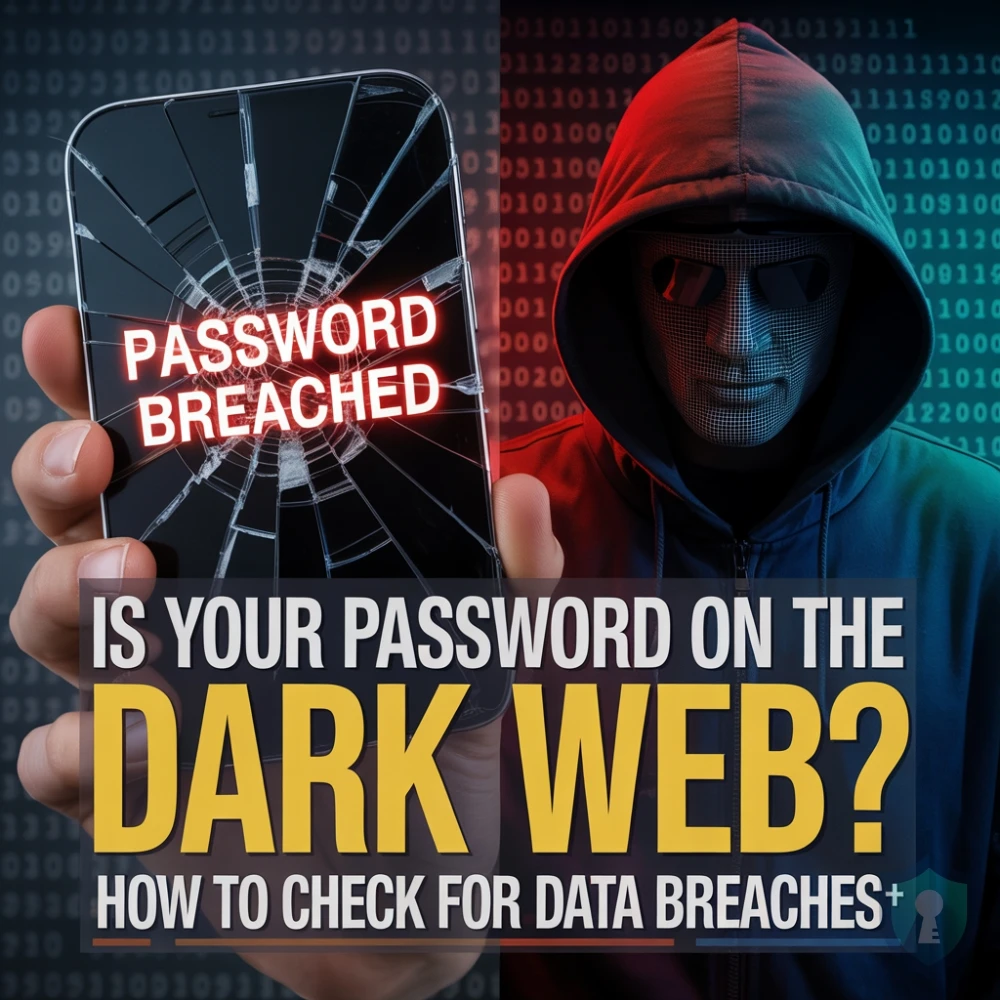
But here is the hard truth: billions of username and password combinations are currently circulating on the Dark Web, where criminals use specialized Dark Web search engines to find and buy your compromised data. If just one website you use gets hacked (like the massive LinkedIn or Adobe breaches), hackers can use those credentials to unlock all your other accounts.
This is called “Credential Stuffing,” and it is how most people get hacked. It is also the primary way scammers find targets for the Geek Squad Email Scam, sending you fake invoices because they know your real email and password.
The good news? You can check if your data has been stolen in about 10 seconds, for free.
In this guide, we will show you how to use the industry-standard tool Have I Been Pwned to audit your digital footprint.
The Tool: What is “Have I Been Pwned”?
Have I Been Pwned (HIBP) is a free service created by security expert Troy Hunt. It is a searchable database of billions of leaked records from verified data breaches.
It is so trusted that governments and password managers integrate directly with it. It does not hack you; it simply checks your email against public lists of stolen data.
Step 1: Check Your Email Address
This search tells you if your email address has appeared in any known database dumps.
- Go to Have I Been Pwned.
- Enter your email address in the search bar.
- Click “pwned?”.
The Result:
- Green Screen (“Good news”): Your email was not found in the database. (Great, but still use unique passwords!)

- Red Screen (“Oh no – pwned!”): Your email was found in a data breach.



Step 2: Check Your Passwords (Pwned Passwords)
Knowing your email is out there is common. Knowing if your password is compromised is critical.
The NIST (National Institute of Standards and Technology) explicitly recommends checking your passwords against lists of breached credentials to ensure they aren’t already compromised.
HIBP has a separate tool called Pwned Passwords that does exactly this.
Only use this for old or common passwords you are curious about.
- Click the “Passwords” tab at the top of the site.
- Type in a password you frequently use.
- Hit enter.
If the screen turns Red, that password is “burned.” Hackers have it on a list. You must stop using it immediately across all accounts.
Step 3: The “Credential Stuffing” Threat
Why does this matter?
Imagine you used the password Mustang1969! for a random forum about cats in 2015. That forum gets hacked. Now, a hacker has your email and Mustang1969!.
They will use a bot to try that email and password combination on PayPal, Amazon, Gmail, and Coinbase.
If you reused that password, they win. To see just how much of your data is out there, you can also try our FastPeopleSearch Opt-Out Guide to remove your public address and phone number from the web.
Action Plan: If You Are “Pwned”
If you saw the Red Screen, follow these three steps immediately:
- Change Your Password: Log in to the breached service (and any other site where you used that same password) and change it.
- Enable 2FA: Turn on Two-Factor Authentication (2FA) immediately. As we discussed in our Google Voice Scam Guide, having 2FA can stop a hacker even if they steal your password.
Resource: See the CISA (Cybersecurity & Infrastructure Security Agency) guide on why MFA is 99% effective against automated attacks. - Get a Password Manager: It is impossible to remember unique passwords for 100 sites. Use a manager like Bitwarden or 1Password to generate and save them for you.
The Bottom Line
Data breaches are inevitable. You cannot stop Adobe or Facebook from getting hacked. But by checking your status regularly and using unique passwords, you can ensure that a leak at one company doesn’t destroy your entire digital life.