
You just received an email with a PDF attached. It looks like an official invoice from “PayPal” or “Geek Squad” saying you owe $499. It has their logo, their font, and a threatening “Call immediately to cancel” phone number.
But is the document actually from PayPal?
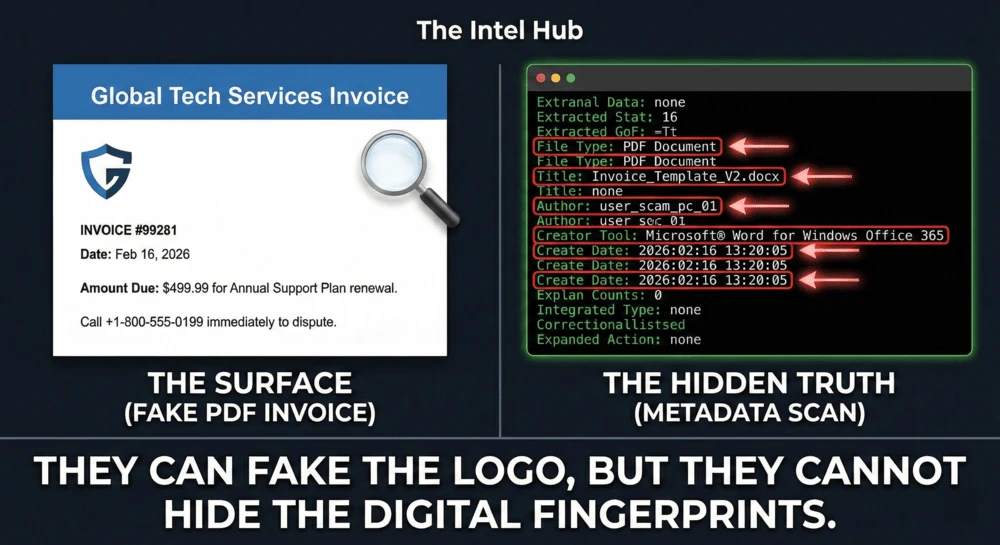
Every file on your computer-whether it is a Word Document, a PDF, or a photo-a hidden layer of information called Metadata. It records exactly who made the file, when it was created, and what software they used.
Scammers are great at using Photoshop, but they are terrible at cleaning their metadata. Here is how to crack open a suspicious document and see its true origins.
What is Document Metadata?
Think of metadata as a file’s digital DNA. When you create a Word document and save it as a PDF, your computer automatically stamps the file with hidden details.
If a scammer creates a fake Apple receipt on their personal laptop, the metadata might literally say: Author: JohnDoe_Hacker.
Method 1: The Quick Scan (Metadata2go)
You do not need to be a hacker to read metadata. There are free, browser-based tools that extract this hidden data in seconds.
How to use it:
- Download the suspicious PDF or Word document to your computer. (Warning: Do not open the file if you suspect it contains malware—just save it).
- Go to Metadata2go.com.
- Drag and drop the file into the upload box.
What to look for: Scroll down through the results and look for these specific red flags:
- Creator Tool: Does it say “Microsoft Word”? Major tech companies like Apple or PayPal do not generate automated millions of invoices using a desktop version of MS Word. They use enterprise billing software.
- Author: This is the name of the computer account that created the file. If the “Geek Squad” invoice was created by an author named “Admin” or “Nigerian_Prince_99”, you have caught them.
- Create Date: If the invoice claims to be from 2023, but the metadata shows the file was created exactly five minutes before the email was sent to you, it is a forgery.
Method 2: The Desktop Check (No Upload Required)
If you are dealing with a highly sensitive document (like a legal threat or a personal contract) and do not want to upload it to a random website, you can check the basic metadata right on your computer.
On Windows:
- Right-click the saved file.
- Click Properties.
- Go to the Details tab. Here you will see the Authors, the program name, and the exact creation timestamps.
On Mac:
- Right-click (or Control-click) the saved file.
- Click Get Info.
- Look under the More Info tab to see the Author and encoding software.
Method 3: The “Pro” Tool (ExifTool)
If you want to dive as deep as professional digital forensics investigators, you need ExifTool by Phil Harvey.
This is a free, command-line tool that extracts every single piece of hidden data inside a file, including older versions of the document and specific printer tags. It is overkill for a simple phishing scam, but it is the industry standard for serious OSINT investigations.
Summary: The Metadata Protocol
| Check | What it Reveals | Why it Matters |
|---|---|---|
| Author Name | The PC user who made the file. | Scammers often leave their real usernames. |
| Creator Tool | The software used (e.g., MS Word). | Real corporations use automated billing systems. |
| Creation Date | When the file was truly born. | Fake documents are usually created on the same day they are sent. |
The Bottom Line
Scammers rely on the fact that most people only look at the surface of a document. By checking the metadata, you are looking underneath the hood.
Before you call the “Customer Service” number on a terrifying invoice, take 10 seconds to run the file through a metadata scanner. The digital fingerprints will always tell you the truth.
Next Step: Now that you know the attached invoice is fake, find out where the email actually came from using our Email Header Tracking Guide.