As we covered in our breakdown of how credential stuffing attacks work, the human brain is your single biggest OPSEC liability. If you are reusing the same password across multiple websites, it is mathematically guaranteed that your accounts will eventually be compromised in a data breach.
The only defense against automated credential stuffing is to generate a unique, mathematically complex 20-character password for every single website you use.
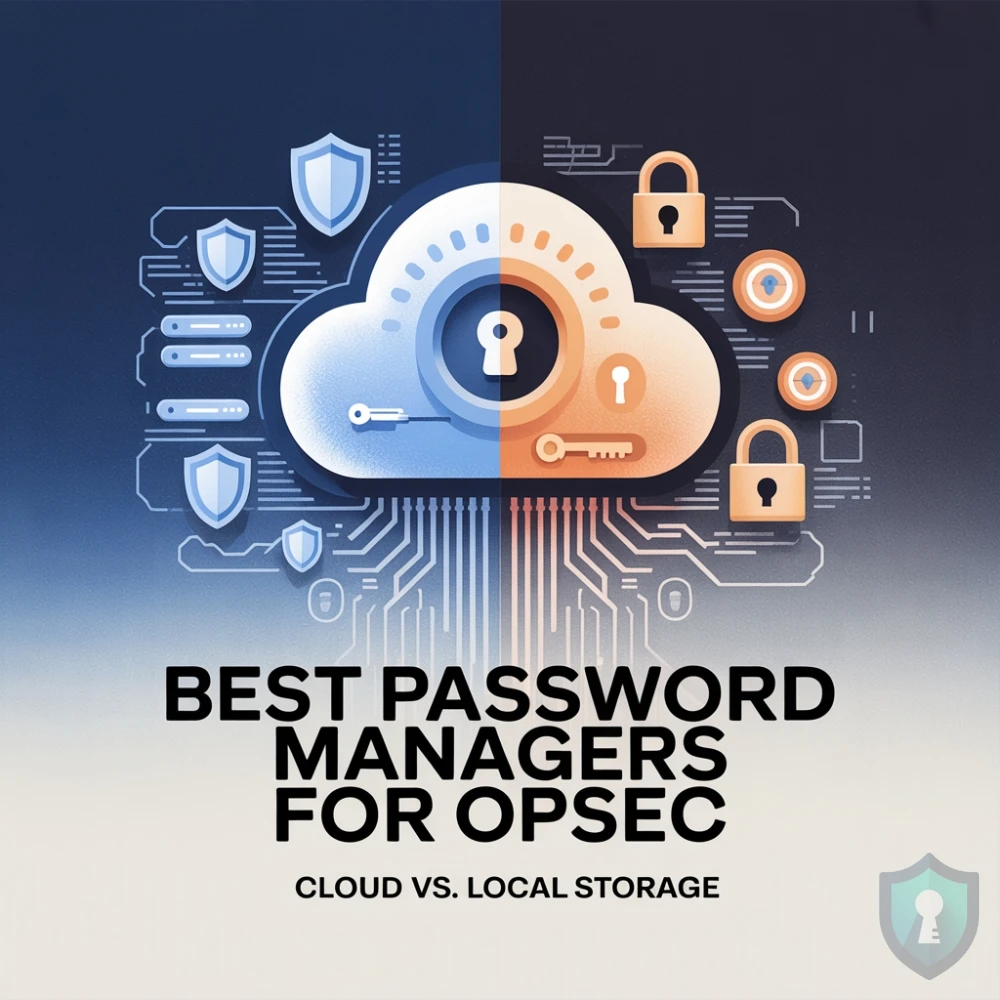
Because a human cannot memorize 200 different random strings of characters, you must use an encrypted Password Manager. But not all password managers are safe. In fact, some of the most popular mainstream options have suffered catastrophic data breaches in the past.
Here is the investigator’s guide to choosing a secure password manager, the critical difference between Cloud and Local storage, and our top recommendations for 2026.
The Core Concept: Zero-Knowledge Architecture
Before choosing a manager, you must understand how they work. A legitimate password manager acts as an encrypted digital vault. To lock and unlock this vault, you create one exceptionally strong, memorable phrase known as your Master Password.
This is the only password you ever need to remember.
Crucially, top-tier password managers utilize Zero-Knowledge Encryption. This means your vault is encrypted locally on your device before it ever touches the internet. The password manager company itself does not know your Master Password, and they cannot see what is inside your vault. Even if the company’s servers are hacked by a hostile government, all the hackers get is an unreadable blob of encrypted data.
Cloud-Based Password Managers
The vast majority of modern password managers are cloud-based. Your encrypted vault is stored on the company’s servers and synced across all your devices via the internet.
- The Pros: Incredible convenience. You can access your passwords instantly from your iPhone, your Windows desktop, or a Linux laptop. If your phone drops in the ocean, your passwords are safe in the cloud.
- The Cons: Your encrypted vault lives on someone else’s computer. You are trusting the company’s server security.
Local (Offline) Password Managers
For extreme threat models, investigators use local storage. The encrypted vault exists only as a file on your physical hard drive or USB stick. It never touches the internet.
- The Pros: Maximum OPSEC. A hacker cannot breach a cloud server to steal your vault because the vault is sitting offline on a USB drive in your desk drawer.
- The Cons: Zero convenience. If your hard drive crashes and you do not have a physical backup, you lose every password you own forever. You also have to manually transfer the file if you want to log in on your phone.
The Investigator’s Shortlist: Top Password Managers for 2026
After evaluating encryption protocols, open-source audits, and jurisdiction, here are the password managers we recommend for serious digital privacy.
1. NordPass (The Next-Gen Encryption Standard)
Built by the cybersecurity giants behind NordVPN, NordPass is our top recommendation for users who want military-grade security without a steep learning curve.
- Storage: Cloud-based.
- Why we recommend it: While most password managers use standard AES-256 encryption, NordPass utilizes XChaCha20. This next-generation encryption algorithm is faster, lighter, and heavily resistant to future cryptographic cracking. It also features a built-in Data Breach Scanner that constantly monitors the dark web to see if your credentials have been leaked.
2. Proton Pass (The Privacy Ecosystem)
Built in Switzerland by the CERN scientists behind the highly secure ProtonMail and ProtonVPN, Proton Pass is a relatively new but incredibly powerful open-source manager.
- Storage: Cloud-based.
- Why we recommend it: Proton Pass includes a revolutionary feature for OPSEC: Email Aliasing. When you sign up for a sketchy website, Proton Pass generates a fake, temporary email address. If that website gets hacked, the attackers only get the fake email, keeping your true identity completely hidden.
3. Bitwarden (The Open-Source Standard)
Bitwarden has become the undisputed champion of the privacy community. It is fully open-source, meaning thousands of independent cybersecurity researchers continuously audit its code for vulnerabilities.
- Storage: Cloud-based (with a self-hosting option).
- Why we recommend it: It offers the best free tier in the industry, and its premium tier is incredibly affordable. For advanced users, Bitwarden allows you to completely bypass their cloud servers and host your own encrypted vault on a private home server.
4. KeePassXC (The Offline Purist)
We make absolutely zero money recommending this tool, but we must include it because it is the gold standard for absolute OPSEC. KeePassXC is completely free, open-source, and operates 100% offline.
- Storage: Local only.
- Why we recommend it: There are no accounts, no subscriptions, and no cloud servers. It generates a heavily encrypted
.kdbxfile that lives directly on your local machine. If you are a journalist or an investigator operating under a severe threat model, this is the only tool you should use.
5. 1Password (The Best User Experience)
If you are trying to convince your less tech-savvy family members to stop reusing passwords, 1Password is the solution. While it is closed-source (which some privacy purists dislike), its security architecture is legendary.
- Storage: Cloud-based.
- Why we recommend it: It features a proprietary “Secret Key” system. Even if a hacker stole your Master Password and 1Password’s servers were breached simultaneously, the hacker still could not open your vault without a 34-character cryptographic key that only exists locally on your authorized devices.
Choosing a password manager is useless if you leave your old, weak passwords sitting inside your web browser. Browsers like Google Chrome and Safari are notoriously insecure places to store credentials.
Your immediate next step: Choose a manager from the list above, install it, and use its “Import” tool to pull all your saved passwords out of Google Chrome. Once imported, permanently delete your passwords from your browser settings.