
It’s the digital equivalent of stepping on a noisy floorboard while sneaking around.
You are researching a competitor, checking out a potential hire, or just doing some casual background sleuthing on LinkedIn. You click on their profile.
Suddenly, panic sets in. Did you just notify them?
Unlike Facebook or Instagram, LinkedIn actively tells users: “Someone viewed your profile.” If you aren’t careful, your name and headline will appear right at the top of that list.
If you want to gather intelligence without blowing your cover, you need to know how to browse in “Stealth Mode.” Here are the three proven methods to view LinkedIn profiles completely anonymously.
Method 1: The Official Way (“Private Mode”)
LinkedIn actually has a built-in feature for this. It is the easiest method, but it comes with a major trade-off.
How it works: When you turn on “Private Mode,” you become invisible to others. When you visit a profile, they will only see that “An anonymous LinkedIn Member” viewed them.
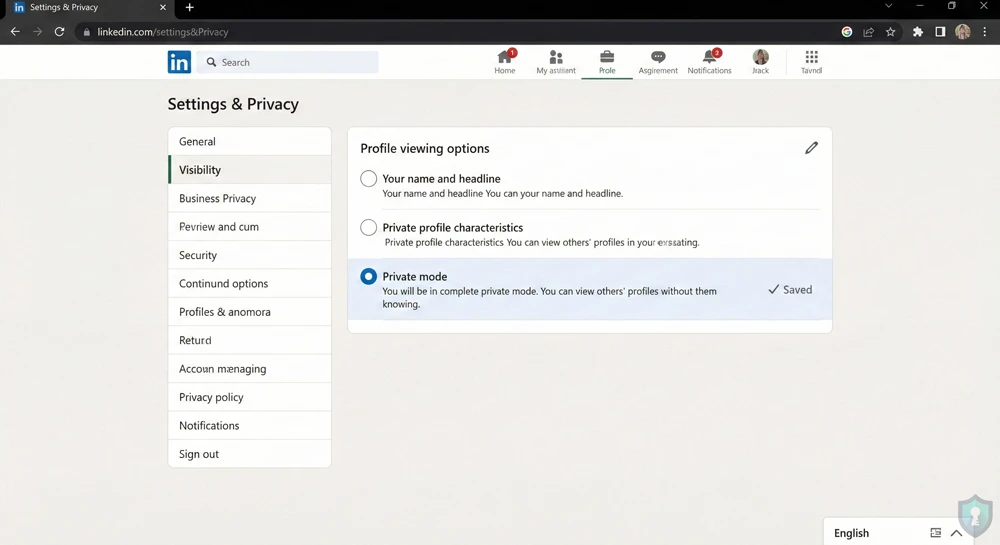
The Trade-off: If you hide yourself, LinkedIn hides everyone else from you. You will no longer be able to see who views your profile (unless you pay for a Premium subscription).
Steps to Activate Private Mode:
- Click your profile photo (“Me”) at the top of LinkedIn.
- Select Settings & Privacy.
- On the left sidebar, click Visibility.
- Click on Profile viewing options.
- Select the bottom option: “Private mode”.
Once selected, your changes are saved automatically. You can now browse freely
Method 2: The OSINT Way (Search Engine Cache)
What if you don’t want to log in at all? Or what if you don’t want to mess with your settings?
The best investigators don’t touch the target directly. They use search engines to look at the public version of the profile from the outside.
How it works: Google indexes public LinkedIn profiles. You can view this data without LinkedIn ever knowing you were there.
Steps to use Google Search:
- Open an “Incognito” or “Private” browser window (so you aren’t logged into your own LinkedIn).
- Go to Google.
- Use this specific search query, replacing the name with your target:
site:linkedin.com/in/ "John Smith" New York - Do not click the main link. Instead, look for the three dots next to the result or the small down arrow.
- Click “Cached” if available. This shows you a snapshot Google took days ago.
- If “Cached” isn’t available, you can often see enough information just from the Google results snippet, or by clicking images related to the search.
Method 3: The “Burner” Account (For Deep Investigations)
If you need to see the full profile, click links, and map out connections without revealing your identity, serious investigators use a “sock puppet” (a fake account).
Warning: Creating fake accounts violates LinkedIn’s Terms of Service. If caught, the account will be banned. Use this only for legitimate OSINT investigations.
Steps to Stay Safe:
- Never use your real email or phone number to create the burner account.
- Do not connect your burner account to your real workplace or friends.
- Use the account only for viewing profiles, not for networking.
Myth-Busting: What DOES NOT Work
There is bad advice online about how to trick LinkedIn. Do not rely on these methods:
- The “Quick Logout”: Clicking a profile and then immediately logging out does not work. The view is registered instantly on LinkedIn’s servers.
- Airplane Mode: Loading the page and quickly turning on Airplane mode is unreliable. Modern websites load too fast.
The Bottom Line
If you just need a quick look without the awkwardness, switch your settings to Private Mode (Method 1). It takes ten seconds and guarantees anonymity.
If you are doing serious reconnaissance and need zero digital footprint, use the Google Search Method (Method 2) to stay completely off LinkedIn’s radar.